Streamlit 대시보드 작성 2일차
1. 오늘 배운것.
먼저 streamlit 문법을 배우기 전에 튜터님께서 공식문서를 많이 참고하라고 하셨습니다.
https://docs.streamlit.io/develop/api-reference/text
Streamlit Docs
Join the community Streamlit is more than just a way to make data apps, it's also a community of creators that share their apps and ideas and help each other make their work better. Please come join us on the community forum. We love to hear your questions
docs.streamlit.io
스트림릿 공식문서 사이트이고 문법찾기가 쉽게 되어있어서 나중에 문법을 까먹는다면 참고하는게 중요한것 같습니다.
1-1. streamlit 주요 함수
1) st.header() : 섹션이나 큰 제목을 표현할 때 사용 합니다.
st.header("이것은 헤더입니다.")
2) st.subheader() : 헤더보다 한 단계 작은 제목입니다.
st.subheader("이것은 서브헤더입니다.")
3) st.markdown() : 마크다운 문법으로 텍스트 스타일링이 가능합니다.
st.markdown('**굵게** 또는 _기울임꼴_ 텍스트를 작성할 수 있습니다.  ')
st.title("Markdown Demo")

st.markdown("# H1 헤더 (MarkDown)")
st.markdown("## H2 헤더 (MarkDown)")
st.markdown("### H3 헤더 (MarkDown)")

st.markdown("**굵게** 혹은 *기울임* 할 수도 있어요.")
st.markdown("[Streamlit 공식 사이트](https://streamlit.io/)로 이동하기")

st.markdown("""
- **:red[빨간색 텍스트]**와 **:blue[파란색 텍스트]**
- 이모지 :sparkles:도 넣어보자!
""")

st.markdown("""
| 이름     | 직업     | 나이 |
|----------|----------|------|
| 홍길동   | 도적     | 25   |
| 김철수   | 개발자   | 30   |
| 이영희   | 디자이너 | 28   |
""")

4) st.caption() : 작은 설명이나 캡션을 달 때 사용합니다.
st.caption("이미지나 그래프의 주석을 달 때 유용합니다.")
5) st.text() : 단순 텍스트를 표시할 때 사용합니다.
st.text("간단히 텍스트만 표시합니다.")
6) st.write() : 텍스트, 데이터프레임, 차트 등 다양한 객체를 자동으로 적절히 표시합니다.
st.write("이것은 write 함수입니다.")
st.write({"key": "value"})
7) st.code() : 코드 블록을 예쁘게 표시합니다.
code_example = """
def hello_world():
    print("Hello World")
"""
st.code(code_example, language="python")
8) st.latex() : LaTeX 문법을 이용한 수식 표현이 가능합니다.
(자세한건 공식사이트 참고)
st.latex(r"\frac{n!}{k!(n-k)!}")
1-2. 다양한 입력 위젯 사용
1) st.text_input() : 사용자의 간단한 텍스트 입력을 받을 수 있습니다.
user_name = st.text_input("이름을 입력하세요", placeholder="홍길동")
st.write(f"안녕하세요, {user_name} 님!")
2) st.text_input() : 사용자의 간단한 텍스트 입력을 받을 수 있습니다.
user_memo = st.text_area("메모를 남겨주세요", height=100)
st.write("메모 내용:", user_memo)
3) st.number_input() : 숫자(정수,실수)를 입력받거나 슬라이터 형태로 사용할 수 있습니다.
age = st.number_input("나이를 입력하세요", min_value=1, max_value=120, value=20)
st.write(f"당신의 나이는 {age}입니다.")
4) st.date_input() : 날짜를 선택할 수 있는 캘린더 위젯입니다.
selected_date = st.date_input("날짜 선택")
st.write("선택한 날짜:", selected_date)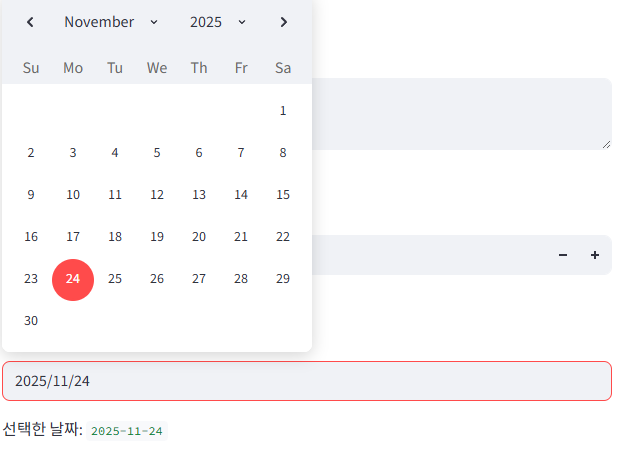
5) st.selectbox() : 여러 옵션 중 하나만 고를 수 있습니다.
fruit = st.selectbox("어떤 과일을 좋아하세요?", ["사과", "바나나", "딸기"])
st.write(f"선택한 과일은 {fruit}입니다.")
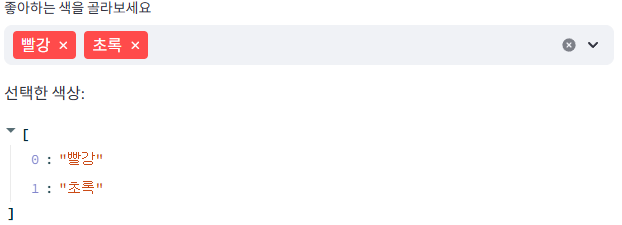
6) st.multiselect() : 여러 옵션을 복수로 선택할 수 있습니다.
colors = st.multiselect("좋아하는 색을 골라보세요", ["빨강", "파랑", "초록", "노랑"], ["빨강"])
st.write("선택한 색상:", colors)
7) st.radio()
choice = st.radio(
    "어떤 동물을 좋아하세요?",
    ("고양이", "강아지", "코끼리")
)

st.write("당신이 선택한 동물은:", choice)

if choice == "고양이":
    st.write("🐱 야옹~")
elif choice == "강아지":
    st.write("🐶 멍멍!")
else:
    st.write("🐘 뿌우~")
8) st.button() : 클릭 여부에 따라 True / False를 반환합니다.
button_cho = st.button('자폭버튼')
if button_cho:
    st.write('자폭버튼이 눌렸습니다. 3초 후에 폭발합니다... 💥💥💥')

import random

st.title("🔮 오늘의 운세 뽑기")

if st.button("운세 뽑기"):
    fortunes = [
        "대박! 오늘은 황금 같은 기회가 온다!",
        "조심조심~ 길을 가다가 복이 굴러들어올 수도?!",
        "평탄한 하루! 큰 일은 없으나 작은 행복이 있을 예정!",
        "약간의 우울함이 스칠 수 있지만, 친구와 수다로 극복 가능!",
        "캠프 끝나고 여자친구가 생겨요!"
    ]
    result = random.choice(fortunes)
    st.markdown(f"**당신의 운세: {result}**")
else:
    st.markdown("💡 버튼을 눌러 당신의 오늘 운세를 확인해보세요!")
9) st.slider() : 숫자 범위를 시각적으로 조절할 수 있는 슬라이더 입니다.

1-3. 그래프 시각화
1) streamlit 기본차트 활용하기
import pandas as pd
import numpy as np

# 예시 데이터 생성
chart_data = pd.DataFrame(
    np.random.randn(20, 3),
    columns=["a", "b", "c"]
)

st.line_chart(chart_data)   # 라인 차트
st.bar_chart(chart_data)    # 바 차트
st.area_chart(chart_data)   # 영역 차트


2) Matplotlib & Seaborn
2-1. st.pyplot(fig) : Matplotlib figure 객체를 streamlit 앱에 렌더링
import matplotlib.pyplot as plt

# 임의 데이터 생성
x = np.linspace(0, 10, 100)
y = np.sin(x)

fig, ax = plt.subplots()
ax.plot(x, y, color="blue", label="sin(x)")
ax.set_title("Matplotlib Sin Graph")
ax.set_xlabel("X-axis")
ax.set_ylabel("Y-axis")
ax.legend()

st.pyplot(fig)
2-2. Seaborn
import seaborn as sns

# 샘플 데이터셋: tips
tips = sns.load_dataset("tips")

fig, ax = plt.subplots()
sns.scatterplot(data=tips, x="total_bill", y="tip", hue="time", ax=ax)
ax.set_title("Seaborn Scatter Plot (Tips Data)")

st.pyplot(fig)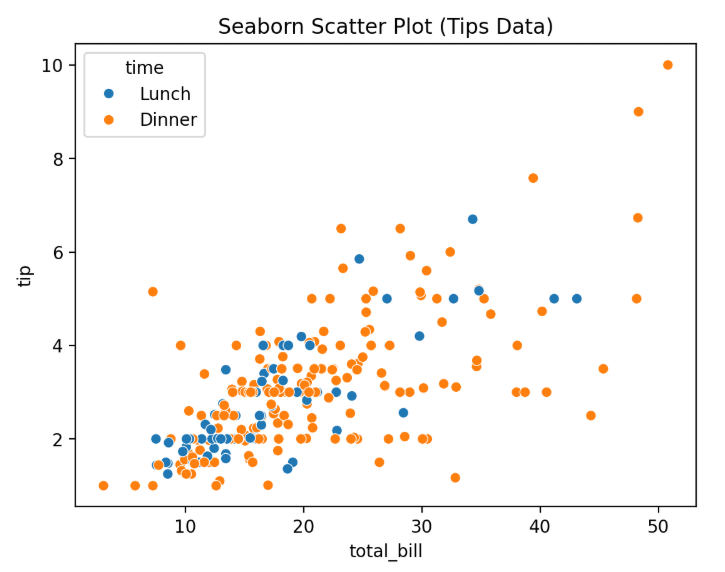
3) st.plotly_chart(fig) : Plotly Figure 객체를 Streamlit 앱에 렌더링
import plotly.express as px

# 예시로 iris 데이터셋 사용
df_iris = px.data.iris()

fig = px.scatter(
    df_iris,
    x="sepal_width",
    y="sepal_length",
    color="species",
    size="petal_length",
    title="Plotly - Interactive Scatter Plot"
)

st.plotly_chart(fig)  # st.plotly_chart()를 사용